
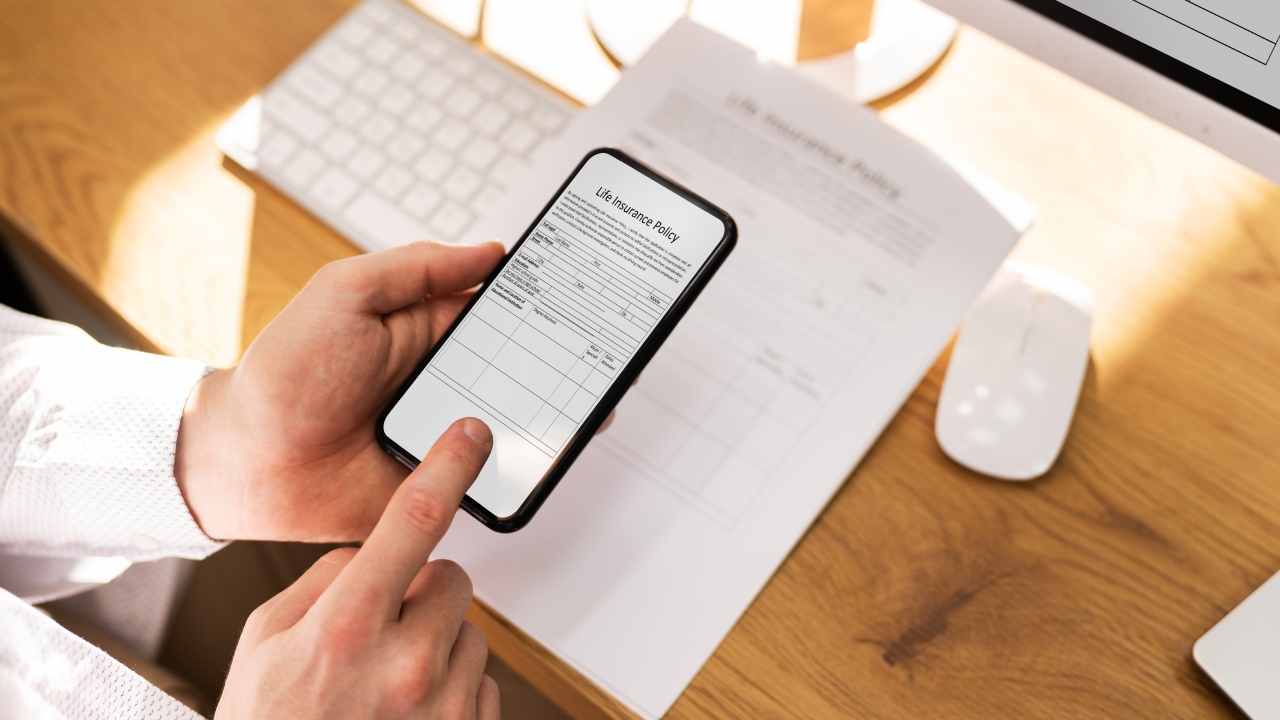
Mobile Document Scanning In the age of digital transformation, mobile document scanning has become an essential tool for businesses, students, and professionals alike. With just your smartphone, you can scan, store, and share documents, making it easier than ever to digitize your paperwork. In this complete guide, we’ll explore the best practices, tools, and tips for mobile document scanning, helping you optimize this process for both personal and professional use.
1. Why Choose Mobile Document Scanning?
The convenience of mobile document scanning is undeniable. Gone are the days of bulky office scanners or waiting to access a physical scanner. With mobile scanning, you can quickly capture high-quality scans anywhere and at any time. Whether you need to scan a receipt for reimbursement, a contract for work, or class notes for school, your smartphone becomes your portable scanner, making the process fast and efficient.
2. Best Mobile Document Scanning Apps
Choosing the right app for mobile document scanning can significantly affect the quality of your scans. Many apps offer features like auto-cropping, image enhancement, and Optical Character Recognition (OCR). Some of the top apps include:
- Adobe Scan: This app automatically detects document edges, applies enhancements, and allows you to save scans as PDFs. It also includes OCR for text recognition, making your scans editable.
- CamScanner: Known for its high-quality scans, CamScanner offers features like smart cropping, image enhancement, and multi-page scanning. It also supports OCR and allows for easy sharing.
- Microsoft Lens: Previously known as Office Lens, this app integrates well with Microsoft’s ecosystem. It’s perfect for scanning documents, whiteboards, and even business cards, offering options to save scans in Word, PowerPoint, or PDF formats.
3. Preparing for the Scan
Before you begin scanning, it’s important to prepare your documents to ensure the best quality results. Here are a few tips:
- Clean the Lens: Ensure the camera lens of your phone is clean. Smudges or dirt can negatively affect the quality of your scan.
- Flat and Clear Surface: Lay the document flat on a clean surface to avoid distortions in the scan. Ensure the document is free from wrinkles or creases.
- Lighting: Good lighting is key to a successful scan. Natural light works best, but if that’s not available, use a well-lit area to avoid shadows or reflections. Avoid direct light that can cause glare on the document.
4. Capturing the Scan
Once the document is ready, position your phone directly above it and align the edges within the app’s frame. Most scanning apps feature an auto-capture function that detects when the document is properly aligned and when to take the photo. However, if you prefer manual control, be sure to hold your phone steady to avoid blurriness. Apps with auto-cropping features can help trim unnecessary borders, giving you a clean, centered document.
5. Editing and Enhancing Your Scan
After capturing the image, most apps offer editing options to enhance the scan quality. Here are a few common editing tools:
- Crop and Rotate: Adjust the document’s orientation if necessary and crop out any unwanted areas.
- Adjust Brightness and Contrast: These settings allow you to fine-tune the scan, making text clearer and images sharper.
- Apply Filters: Some apps offer filters to turn scans into black-and-white or enhance the overall clarity, making it easier to read fine print.
6. Using OCR for Editable Text
One of the standout features of mobile scanning apps is Optical Character Recognition (OCR). OCR technology extracts text from images, converting your scanned document into editable text. This is especially useful if you need to edit or search for specific terms within a document. Many apps, such as Adobe Scan and CamScanner, offer OCR as part of their premium features.
To use OCR effectively, make sure your scanned document is high-quality. OCR works best on well-lit, sharp images with clear, readable text. Once the text is extracted, you can copy, edit, or share it in various formats, such as Word or Excel.
7. Organizing Your Scans
Once you’ve scanned and edited your document, it’s time to organize it. Most apps allow you to save scans to your device or cloud storage, making it easy to access your files from anywhere. Apps like Adobe Scan and CamScanner offer cloud integration, allowing you to sync your scans across multiple devices.
To stay organized, consider creating folders or naming your files with clear, descriptive titles. This makes it easier to locate important documents in the future.
8. Sharing and Exporting Your Scans
Once your scan is ready, most apps allow you to export or share your document directly. You can share PDFs or images via email, messaging apps, or upload them to cloud storage services like Google Drive or Dropbox. Many apps also offer export options in various formats, including PDF, Word, or JPEG.
9. Security and Privacy Considerations
When scanning sensitive documents, it’s essential to take security into account. Many apps offer password protection for scanned documents, ensuring that only authorized users can access them. Additionally, be cautious about uploading sensitive documents to cloud services and always use reputable apps with strong encryption and privacy policies.
Conclusion
Mobile document scanning is a simple and powerful tool for anyone who needs to manage documents on the go. By following the best practices outlined in this guide, you can improve the quality of your scans, enhance your workflow, and ensure that your documents are organized and secure. Whether you’re a business professional, a student, or someone who frequently handles paperwork, mastering mobile document scanning can make your life significantly easier.